NVIM for developers
-
- Introduction and installation
- Basic setup and configuration
- How to use different editor configs
- Advanced features
- Practical use
- Going deeper and joining the community
- Notes
- Resources
The idea was simple and therefore suspicious: an editor your hands never leave the keyboard for. Not an office suite, not an "interface for power users", but a direct conversation with the buffer — through registers, through modes, through sequences of bytes you hold in your head the way you once held the addresses of a tungsten lamp.
Vi is a console editor; for compatibility it emulates the commands of another old console editor, ex. Archaeology, yes. The first edition of "Learning the vi" came out in 1986, and modern reprints still repeat it like a prayer nobody reads aloud anymore. It is 2025 — and Vim is still alive and popular among developers. So much for "archaeology": it has outlived corporate standards, outlived fashionable frameworks, outlived the gurus who three years ago swore you could not write code without their proprietary IDE.
The core idea is not to take your hands off the keyboard. Touch typing. If you still have not learned it, start now, before it is too late. While working with the editor I picked up a split keyboard. Tried it — liked it. Very comfortable. It is hard to do anything when your head echoes "forgot what I was doing while looking for the key" — that is not a quote, it is a diagnosis I wrote for myself.
If you are thinking about moving the cursor with the arrow keys — know that this path is wrong. Disable arrow-key movement right away. Not "consider disabling". Disable it.
It is claimed that the speed of interacting with the editor will grow, and new shades will enter your work: you start looking for how to do an action faster with a key combination, and suddenly catch yourself thinking not about the task but about moving through it. That is what hardcore is — not aggression, but attention.
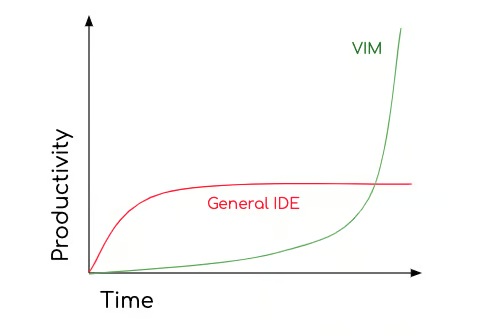
I decided to test the claim myself. This note will change, grow, and be edited as I learn the editor — like a config that is never final.
I started with the ready-made LazyVim distribution. I believe that in any business it is right to start with the basics. At first I installed a pile of extra plugins, thinking it would speed up development — but as soon as you get familiar with the basics, you understand you could have done it differently. Vim has many community-supported distributions. Without understanding the basics you will spend an eternity googling how to fix or change someone else's settings, and you will see neither speed nor productivity gains at first. The basics are not worth postponing. Start with them, and read the documentation in parallel — not "study", but read it the way you read a disassembly listing: line by line, out loud, with suspicion.
Introduction and installation
- Vim basics
Basic setup and configuration
- Configuration files
- Main configuration files.
- Setting up basic editor options (themes, fonts, showing line numbers).
!!! All the essential information can be found in the official LazyVim documentation + there is a book freely available.
Advanced features
- Extended configuration
This plugin lets you use Cyrillic for navigation
Have you ever tried to think with your hands while typing in Cyrillic? There. Now imagine the keys under your fingers are the same opcodes, only in human language.
Understand one thing: a lot of developers build settings for themselves. If you think you will take something ready-made, figure out the hotkeys, and be done — that is not how it works. Setting up an editor is a long process that requires understanding what you are doing. The project is due tomorrow morning — do not spend time learning the editor. Seriously. Digging deep is great, but not the night before a deadline.
And before you start: using Vim is addictive. That is not a metaphor. It is like once seeing a disassembler show you what actually happened inside that function — you do not go back.
How to disable autoformat globally
vim.g.autoformat = false
How to disable diagnostics for certain files (.env, .md)
vim.api.nvim_create_autocmd({ "BufRead", "BufNewFile" }, {
  pattern = { "*.md", ".env" },
  command = "lua vim.diagnostic.disable()",
  nested = false,
})
Two lines. Fewer than the opening post of any productivity guru. That is exactly what is irritating: so much pathos around a tool that is, at bottom, a smart text editor that counts characters.
- Workflows and macros
- Learn how to create and use macros to automate routine tasks.
- Set up and use scripts to speed up your work.
Practical use
-
Practice
- Do various programming or text-editing tasks using LazyVim.
- Configure the editor for your own personal needs and preferences.
-
Real projects
- Apply your knowledge on real projects.
- Set up LazyVim for specific programming languages and tasks.
Going deeper and joining the community
-
Going deeper
- Get familiar with the documentation and capabilities of more complex plugins.
- Experiment with settings and configuration.
-
Community and support
- Join discussions on forums and in LazyVim user communities.
- Support and grow projects built on LazyVim.
Notes
- How to disable arrow-key movement
- Change the diagnostic output
- Setting up LSP for php
- LazyVim setup for Laravel
- Jump to a Blade file with view()
- Grug-far search and replace
- Working with a database (DAB plugin)
Resources
- LazyVim documentation: LazyVim Documentation
- Vim tutorials and guides: Vim Adventures, Vimcasts
- Communities and forums: Reddit (r/vim, r/neovim), Stack Overflow.