Movement in Vim
I walk through a file twenty thousand lines long and never lose my way, because I do not remember the road by heart: I remember the commands. Movement in Vim is not "a cursor running around the screen", it is navigation through memory, where every position has a name, an offset, and a distance. A mouse measures distance in pixels; we measure it in words, lines, and paragraphs — that is, in the very units the text is made of. Fashionable editors proudly draw a minimap in a side panel so you know where you are. Vim offers not to know where you are, but to know where to go.
Basic movement commands
Arrows
Although using the arrows in Vim is not recommended for experienced users, they are still available:
h— leftj— downk— upl— right
Four keys that drag your hand toward ruin: behind them hides the mouse, and behind the mouse hides the habit of squinting at pixels. Stay away while you still can.
Movement is available in insert mode too
C-h,j,k,l— move left, down, up, right.C-w— delete the word before the cursor.C-u— delete everything up to the cursor.
Moving by words
A word is an atomic unit of meaning, and the commands w, e, b cut the text exactly along those atoms, the way a good disassembler cuts a stream along instruction boundaries. No "one more character, again, again" — a jump to where a thought begins or ends.
w— move to the start of the next word.e— move to the end of the current word.ge— move to the end of the previous word.b— move to the start of the previous word.
Видео «word-motions» не найдено (урок не готов или slug неверный).
Moving by lines
A line is no longer characters but a sentence, with a beginning, a gray zone of indentation, and an end. Three keys for three boundaries, and nothing else is needed.
0— move to the beginning of the current line.^— move to the first non-blank character of the line.$— move to the end of the current line.
Видео «move-down» не найдено (урок не готов или slug неверный).
Moving through the text
And now — the whole thing: the entire file as one block of memory, from the first byte to the last, with paragraphs instead of pages.
gg— move to the beginning of the file.G— move to the end of the file.{— move to the beginning of the current paragraph.}— move to the beginning of the next paragraph.
Advanced movement commands
Combined commands
This is where the real hardcore kicks in: a number before a command turns a gesture into a loop. One press — five lines down, and your fingers stop counting because the machine counts for them.
5j— move down 5 lines.3w— move forward 3 words.2b— move back 2 words.
Search
Search is a query to an index, not page-flipping with your eyes. A pattern, a direction, and the whole file collapses to a single match.
/pattern— search for text matchingpatternforward through the file.?pattern— search for text matchingpatternbackward through the file.n— go to the next occurrence of the found pattern.N— go to the previous occurrence of the found pattern.
Marks and jumps
A mark is an address in the file's address space: you set a, and the position becomes known to every subsequent command. Returning is like ret in a stack — back to exactly where you left from.
ma— set markaat the current cursor position.'a— jump to marka.''— return to the previous cursor position.
Moving by words and characters
Point search inside a line: not "somewhere", but "exactly here, two characters to the left". Cheaper than any widget and it works even where the screen barely fits a single line.
f<char>— move to the next occurrence of the character<char>in the line.t<char>— move to the character before the next occurrence of<char>in the line.F<char>— move to the previous occurrence of the character<char>in the line.T<char>— move to the character after the previous occurrence of<char>in the line.;repeat the last f or F command;,repeats the search, but, unlike ";", in the opposite direction.
Moving by brackets
One key — and the cursor jumps to the matching bracket. For languages with a call stack it is like tracing a return address through registers, only faster.
%— move to the matching opening or closing bracket ((), {}, []).
Extra
Lazyvim uses the flash.nvim plugin, which lets you move quickly through code using s<char>
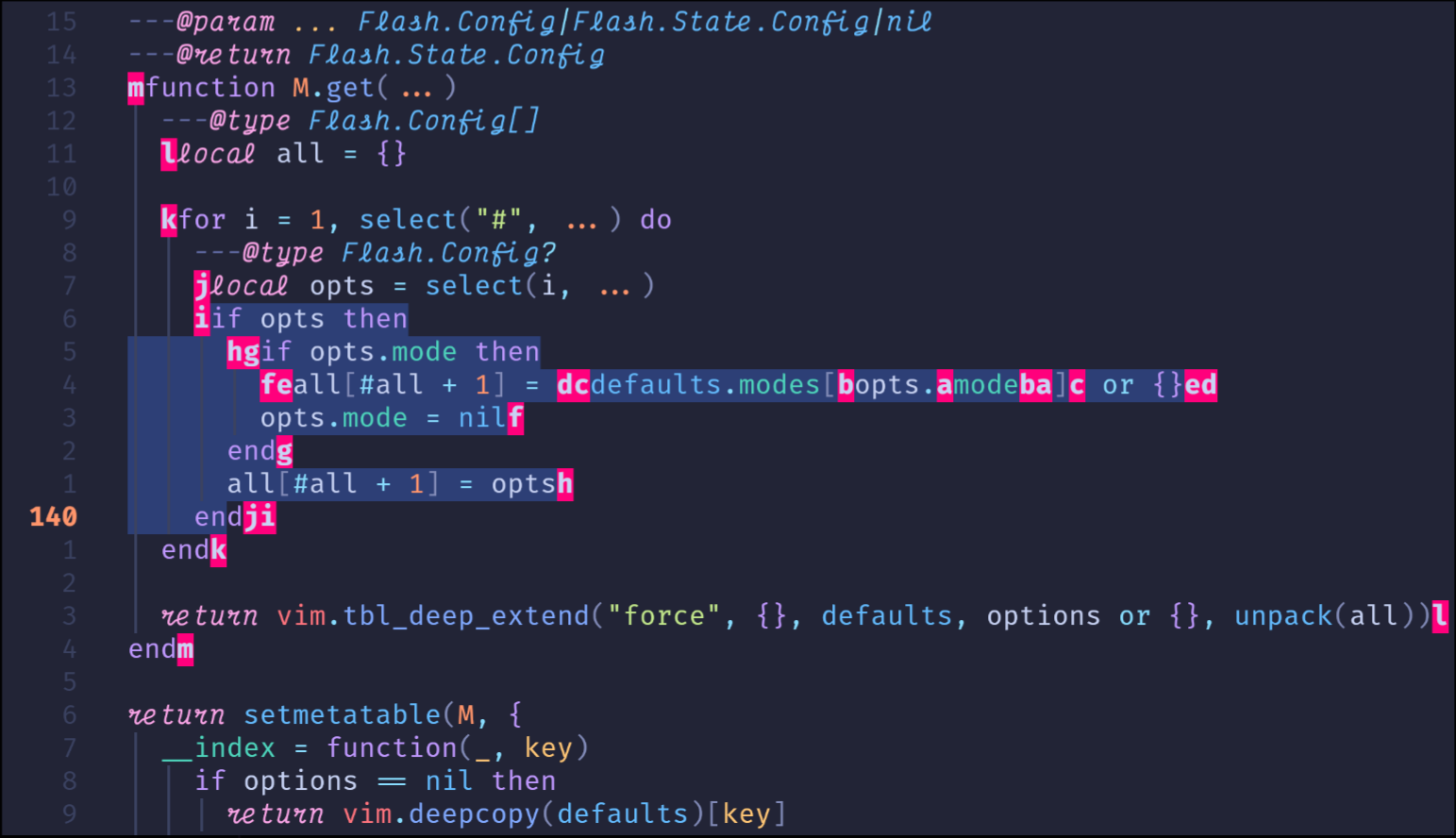
Flash works only with the visible part of the buffer.
For scrolling you can use
<ctrl><d>— down<ctrl><u>— up<ctrl>f— forward (for these commands you can specify how far forward,<ctrl>5f— 5 pages forward)<ctrl>b>— back
If you press the z key in Normal mode:

The relative-cursor keys I use exclusively for scrolling are zt, zb, and zz. They move the line the cursor is on to the top, bottom, or middle of the screen respectively. When moving to the top or bottom of the screen, a few lines of context remain above or below the cursor.
There are other commands that also move the cursor to the first column of the window, but instead of memorizing those key combinations, I recommend combining the previous commands with 0, as in zt0, zb0, and zz0. The 0 command simply means "go to the beginning of the line". You can also use home if your keyboard has a home key, but 0 is easier to press on many keyboards.
Conclusion
Nobody is born with these commands in their fingers: at first they are foreign, then heavy, then your own, like a path you walk in the dark without stumbling. Mastering movement is the whole difference between someone who looks for text with their eyes and someone who arrives at it. The road becomes yours when you stop noticing it — and the cursor stands exactly where you left it.
Useful resources
- Vim Tutor — an interactive guide to Vim.
- Vimcasts — video tutorials on using Vim.
- Vim documentation — the official Vim documentation.
A few days of practice — and your fingers will know the road better than you do.